
Classroom loudspeaker support
Roger SoundField / DigiMaster
Power, microphone connection, placement, volume and classroom audio input checks.
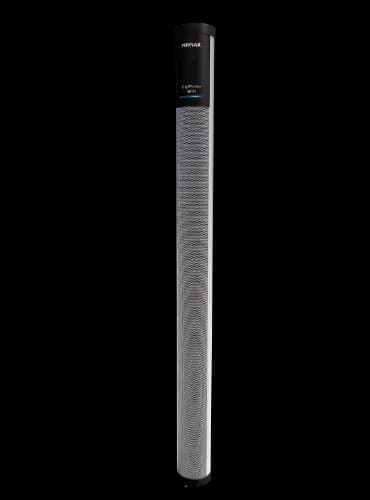
How to recognise it: A tall, slim Roger DigiMaster loudspeaker, commonly used on a floor stand or wall mount in the classroom.
Start here
Three safe first checks
Try these in order. If something looks damaged, unusually hot or unsafe, stop and request service.
- 1
Confirm power
Check the DigiMaster power supply at the wall and at the loudspeaker, then confirm the indicator light is on.
- 2
Check the teacher mic
Make sure the Roger microphone is charged, switched on and unmuted before adjusting the loudspeaker.
- 3
Test speech first
Test the teacher microphone before testing Bluetooth, a computer or another audio source. This separates the system from the source device.
Straightforward self-install
Set up a DigiMaster without guesswork.
This guide covers the standard floor, tripod or desk-stand setup using the supplied Phonak parts. It follows Phonak’s current SoundField teacher and DigiMaster guidance.
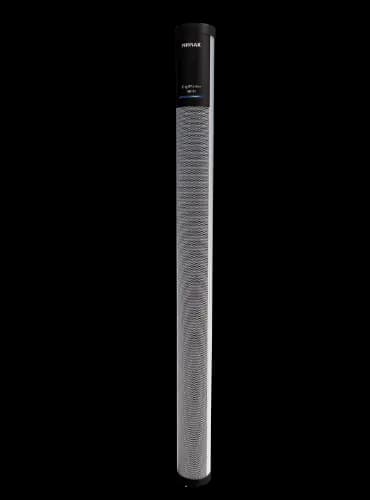
Have these beside you
Before you begin
- Roger DigiMaster loudspeaker
- Its supplied power supply and cable
- The correct Phonak stand for your unit
- A charged Roger Touchscreen Mic
- 1
Fit the supplied stand
Use the floor, tripod or desk stand intended for your DigiMaster. Set it firmly on a stable surface and follow Phonak’s matching stand video before attaching the loudspeaker.
- 2
Connect power and switch on
Plug the supplied 19 V / 3.2 A power unit into the power socket at the bottom of the DigiMaster, then connect it to the mains. Use the on/off control until the blue light flashes at the top.
- 3
Connect the teacher microphone
Switch on the Roger Touchscreen Mic and hold it within 0–10 cm of the DigiMaster. Press Connect on the microphone. A solid blue light on the loudspeaker confirms the connection. Connect additional DigiMaster 7000 speakers one at a time.
- 4
Test speech and finish safely
Unmute the microphone and test normal speech around the listening area. Keep the microphone within the stated 25 m operating range and route the power lead away from walkways. If coverage is uneven, use Phonak’s placement video or call Eoin before changing network settings.
Keep the official instructions open
Videos, diagrams and direct help
Choose a task
Official step-by-step help
Phonak groups the current videos by product. Open the video library and choose the wording that matches what you need to do.
- Switch on and use Roger DigiMaster
- Connect the Roger microphone
- Choose the best classroom position
- Change the SoundField volume
- Pair a Bluetooth multimedia device
- Connect a computer or other audio source
- Set up the floor, desk or wall mount
Something isn’t working
Work through one symptom
Do not change several settings at once. After each check, test the same simple speech task again.
The DigiMaster has no power
Check the wall socket, power cable and connector at the loudspeaker. Use only the manufacturer-specified power supply. If there is visible damage, heat or an electrical smell, disconnect it safely and request service.
The speaker is on but the teacher cannot be heard
Confirm the teacher microphone is on and unmuted. Bring it within normal classroom range and check that it belongs to the same Roger network. Avoid changing several settings at once; note the indicator-light behaviour for support.
Computer or Bluetooth audio is not playing
First confirm that microphone speech still plays through SoundField. Then check the source device’s output selection and volume, and follow Phonak’s official audio or Bluetooth instructions for the DigiMaster version installed.

Classroom QR support card
Put help beside the equipment.
Download or print this page and place the QR code near the system. Staff can return directly to this exact guide without searching.

Still not resolved?
Send Eoin the useful details.
Include “SoundField”, what happens, any lights or messages, what you tried, and a phone number for someone who can stand beside the equipment.
Please do not include a child’s name, diagnosis or other sensitive personal information.