
Table microphone support
Roger Select
Charging, switching on, muting, Bluetooth, phone calls and group listening.
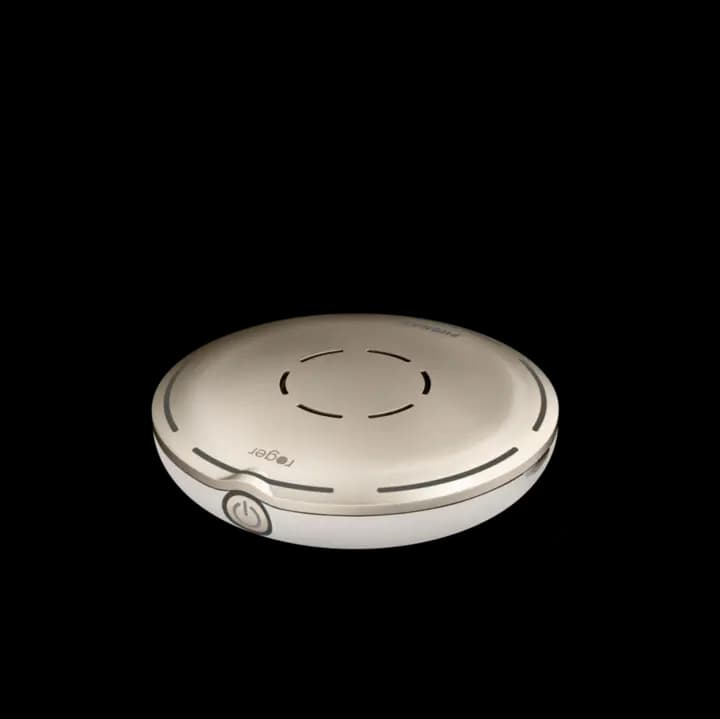
How to recognise it: A round table microphone with six directional segments that can focus on speakers around a table.
Start here
Three safe first checks
Try these in order. If something looks damaged, unusually hot or unsafe, stop and request service.
- 1
Charge first
Charge Roger Select with its approved charging equipment before checking wireless or Bluetooth behaviour.
- 2
Check mute
Confirm the centre indicator is active and the device is not muted.
- 3
Place it clearly
Keep the microphone visible on a stable surface near the people speaking, not under papers or beside a strong noise source.
Choose a task
Official step-by-step help
Phonak groups the current videos by product. Open the video library and choose the wording that matches what you need to do.
- Charge and switch on Roger Select
- Mute or unmute the microphone
- Choose who to listen to around a table
- Connect compatible hearing devices
- Pair with Bluetooth
- Make phone calls or listen to a mobile device
- Listen to television audio
Something isn’t working
Work through one symptom
Do not change several settings at once. After each check, test the same simple speech task again.
The group is difficult to hear
Place Roger Select centrally and unobstructed, confirm it is not muted, and check which directional segments are active. Move it away from loud objects such as a laptop fan or cups being handled.
It does not connect to the listener’s devices
Use the official RogerDirect or receiver setup for the exact hearing devices. Do not assume Bluetooth pairing is the same as joining the Roger network.
Bluetooth or phone audio is not working
Confirm Roger listening works first, then follow Phonak’s separate Bluetooth or phone-call video. Remove and repeat a Bluetooth pairing only when you are sure you are changing the correct connection.

Classroom QR support card
Put help beside the equipment.
Download or print this page and place the QR code near the system. Staff can return directly to this exact guide without searching.

Still not resolved?
Send Eoin the useful details.
Include “Roger Select”, what happens, any lights or messages, what you tried, and a phone number for someone who can stand beside the equipment.
Please do not include a child’s name, diagnosis or other sensitive personal information.