
Portable remote microphone support
Roger On
Charging, everyday use, hearing-device connection, calls and audio listening.
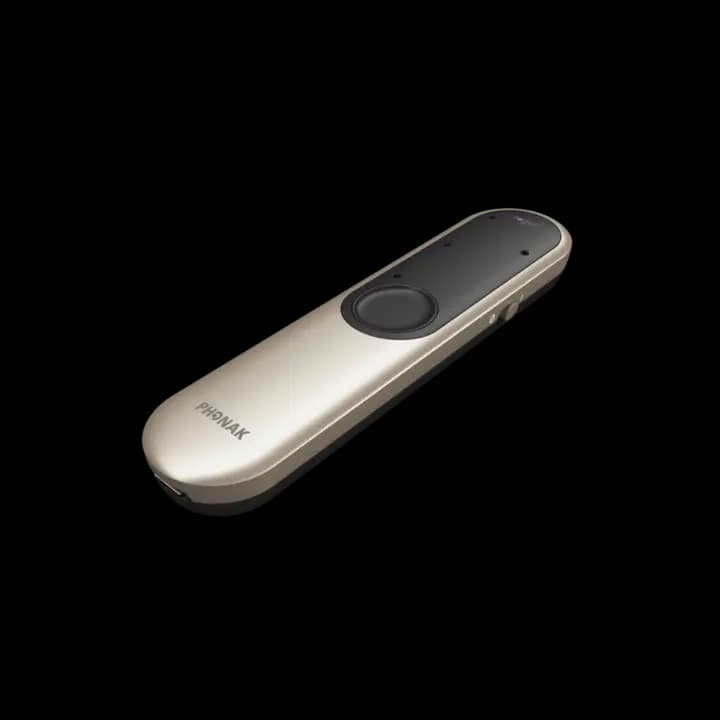
How to recognise it: A small portable microphone with a display, worn by a speaker, placed on a table or pointed towards speech.
Start here
Three safe first checks
Try these in order. If something looks damaged, unusually hot or unsafe, stop and request service.
- 1
Charge the microphone
Start with a full charge so a low battery is not mistaken for a connection or mode problem.
- 2
Check its position
Roger On changes how it picks up speech according to how it is used. Place or wear it as shown in the official guide.
- 3
Test one source
Test live speech before adding a phone, television or computer connection.
Choose a task
Official step-by-step help
Phonak groups the current videos by product. Open the video library and choose the wording that matches what you need to do.
- Charge and switch on Roger On
- Use it worn, on a table or in pointing mode
- Connect compatible hearing devices
- Control Roger On
- Use it for online calls
- Listen to television or another audio source
Something isn’t working
Work through one symptom
Do not change several settings at once. After each check, test the same simple speech task again.
Speech is too quiet or unclear
Check that Roger On is not muted and is being used in the correct position for the situation. Reduce the distance to the speaker and move away from obvious noise sources before changing device settings.
The hearing devices do not receive Roger sound
Confirm the hearing devices themselves are working normally, then follow the official RogerDirect or receiver connection guide for the exact hearing-device setup. Compatibility and connection steps vary.
Calls or media do not play
Test ordinary speech through Roger first. Then check the phone or computer’s selected audio input/output and use the official call or audio video for the Roger On model.

Classroom QR support card
Put help beside the equipment.
Download or print this page and place the QR code near the system. Staff can return directly to this exact guide without searching.

Still not resolved?
Send Eoin the useful details.
Include “Roger On”, what happens, any lights or messages, what you tried, and a phone number for someone who can stand beside the equipment.
Please do not include a child’s name, diagnosis or other sensitive personal information.